Examples Of Spss Data Files

Defining a variable includes giving it a name, specifying its, the values the variable can take (e.g. Three Six Mafia Underground Vol 1 Download here. Drivers License Center Snydersville Pa. , 1, 2, 3), etc. Without this information, your data will be much harder to understand and use.
Whenever you are working with data, it is important to make sure the variables in the data are defined so that you (and anyone else who works with the data) can tell exactly what was measured, and how. There are three ways of defining information about variables: • The Variable View column attributes. • The Define Variable Properties window. We explain the different attributes that variables in SPSS have and how to define them in the sections below. We conclude with an example that demonstrates why it is important to define your variables—and especially why it will make working with your data and performing analyses much more straightforward.
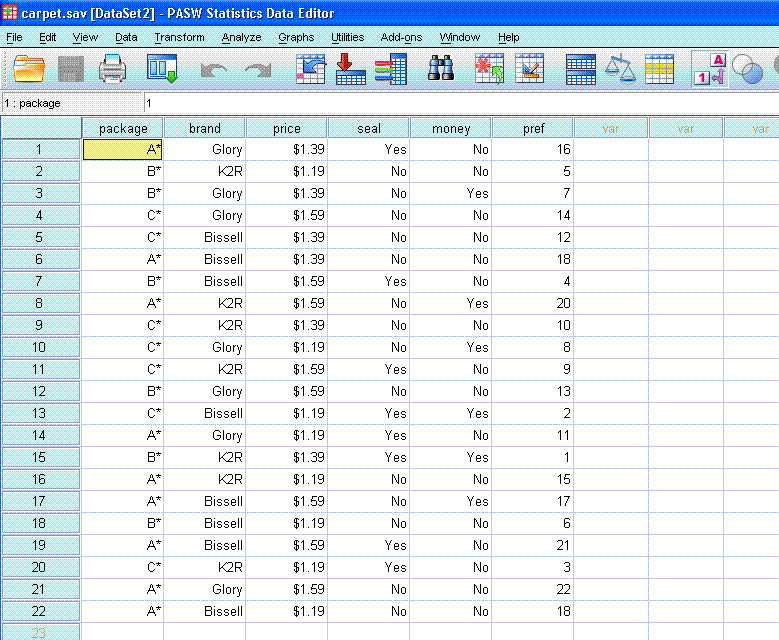
You can define information about your variables by accessing the Variable View tab (at the bottom of the Data Editor window). The Variable View tab displays information about the variables in your data. You can get to the Variable View window in two ways: • In the Data Editor window, click the Variable View tab at the bottom. • In the Data Editor window, in the Data View tab, double-click a variable name at the top of the column.
This method has the advantage of taking you to the specific variable you clicked. The Variable View tab displays the following information, in columns, about each variable in your data: Name The name of the variable, which is used to refer to that variable in syntax. Variable names can not contain spaces. Note that when you change the name of a variable, it does not change the data; all values associated with the variable stay the same.