Gt P1000 Firmware Upgrade
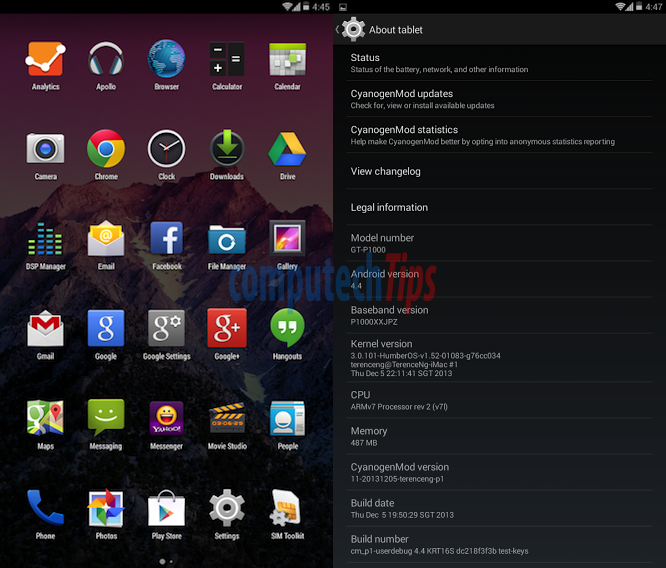
Today, Samsung pushed first bytes of firmware for upcoming Samsung Galaxy Core device. Firmware packs Android Jelly Bean 4.1.2 with PDA version of I8262XXAME8. Welcome my friends. There are a lot of people have asked me how to update device Samsung Galaxy Tab GT-P1000. Especially, there are many applications and games are not consistent, except with update Kitkat Appeal to the request. This video has a full explanation. INSTALL GINGERBREAD 1- power. The Galaxy Tab P1000 users can now update their tablets to the latest version of the Android system, the Jelly Bean 4.2.2 system, as the CM10.1 custom ROM firmware has been made available for the mentioned device. And for learning how to flash the Android 4.2.2 OS on your Galaxy Tab by installing the CM10.1 custom.
Take a look at this complete video, then do it. Enchantment Utopia Rar. I talk to you How to Samsung Galaxy Tab GT P1000 firmware flash with Odin. Here is a step by step guide on how to flash Samsung Galaxy Tab GT P1000 ROM: Step 1.
Download and install Samsung USB Driver on your computer or laptop. In case you have already installed the Samsung Driver on your PC then Skip this step. Download Stock ROM compatible with your Samsung Tab GT P1000 device or if you have already downloaded the firmware file then ignore downloading it again, and extract it on your PC. Power Off your Samsung Tab GT P1000 phone. Now, Boot into Download Mode: Press and Hold Volume Down Key + Home Key + Power Key. How To Download Pixelmon Mod For Minecraft Xbox 360 Edition.
When device vibrates Leave the Power Key but Keep holding the Volume Down Key & Home key. Device will boot into the Download Mode.
See a Warning Yellow Triangle Sign. In this situation you have to press the Volume-up key to confirm entering the download mode.
Download and extract Odin on your PC. Now, Open Odin 3 tool and run it as administrator to start Odin.
And connect your device to the win PC. Once you have connected the Samsung Galaxy Tab GT P1000 to the PC, Odin will automatically recognize the phone and see 'Added' message at the lower left panel. Or connect your phone to the PC via USB cable. When your phone is connected, one of Odin ID:COM boxes will turn yellow and display the 'COM port' number. Once your Samsung device detected by Odin, click on the PDA button tab and select the tar.md5 file, that you have extracted. Now, click on the 'Start' button Tab in Odin to begin the Flashing process.
You see, the Green Pass Message then remove the USB cable from the Samsung device (during this process, your device will restart automatically). Now, your Samsung Galaxy Tab GT P1000 Firmware Update success.
Download Link: Odin3: Firmware Rom: USB Driver: Samsung Kies: More Videos.